Contact

Written by B3Networks Academy
Updated at May 27th, 2026
-
OSS/BSS Answers
Access Control Security Hub Admin Audit B3Network Master Account Channel App Contract App Customer App Discount App Edge Server File Management Finance App Invoice App Number Management Payment Portal Settings Price List Product App Release V2 SMS Gateway Supplier App Support Center Support Hub Business Hub Sales Hub Finance Hub
- App Model - Organization Management
- App Model - Communication Apps Answers
- License Model - Organization Management
-
License Model - CPaaS Solution Answers
Phone System - Admin Guide Phone System - End-user Guide Mobile App Desktop App Web Phone Omni-Channel Auto Attendant - Admin Guide Developer Hub - Admin Guide Microsoft Teams Operator Connect - Admin Guide Microsoft Teams Direct Routing - Admin Guide Contact Center - Supervisor Guide Contact Center - Agent Guide SIP Trunk CPaaS - SIP Trunk Power SIP Trunk CPaaS Fax CPaaS Hotdesking Contact Campaign File Explorer Power Mobile App Files App Campaign App Data Compliance
- Telcoflow
- Integrations Answers
- Updated Regulations
- Ideas Portal
Table of Contents
The Contact menu allows you to manage call, SMS, and fax routing by configuring a Company Blacklist/Whitelist and a Personal Whitelist.
Elements
| Element | Description |
|---|---|
| Search bar | Type a phone number or partial number to filter the list in real time. |
| Import button | Upload a CSV file to bulk-import phone numbers and their Allow/Block settings. |
| Export button | Download the current list as a CSV file for backup or editing offline. |
| + Add button | Open the Add Number dialog to manually add a single phone number with its settings. |
| Number column | Displays the phone number in international E.164 format (e.g. +6567678998). |
| Voice column | Shows the Voice call status for the number: Allow, Block, or None. |
| SMS column | Shows the SMS status for the number: Allow, Block, or None. |
| Fax column | Shows the Fax status for the number: Allow, Block, or None. |
| Last Modified column | Timestamp of the most recent change to this entry (YYYY-MM-DD HH:MM format). |
| Edit icon (pencil) | Appears on row hover. Opens the Edit Number dialog to modify the entry's settings. |
| Delete icon (trash) | Appears on row hover. Deletes the entry from the list (requires confirmation). |
Permissions
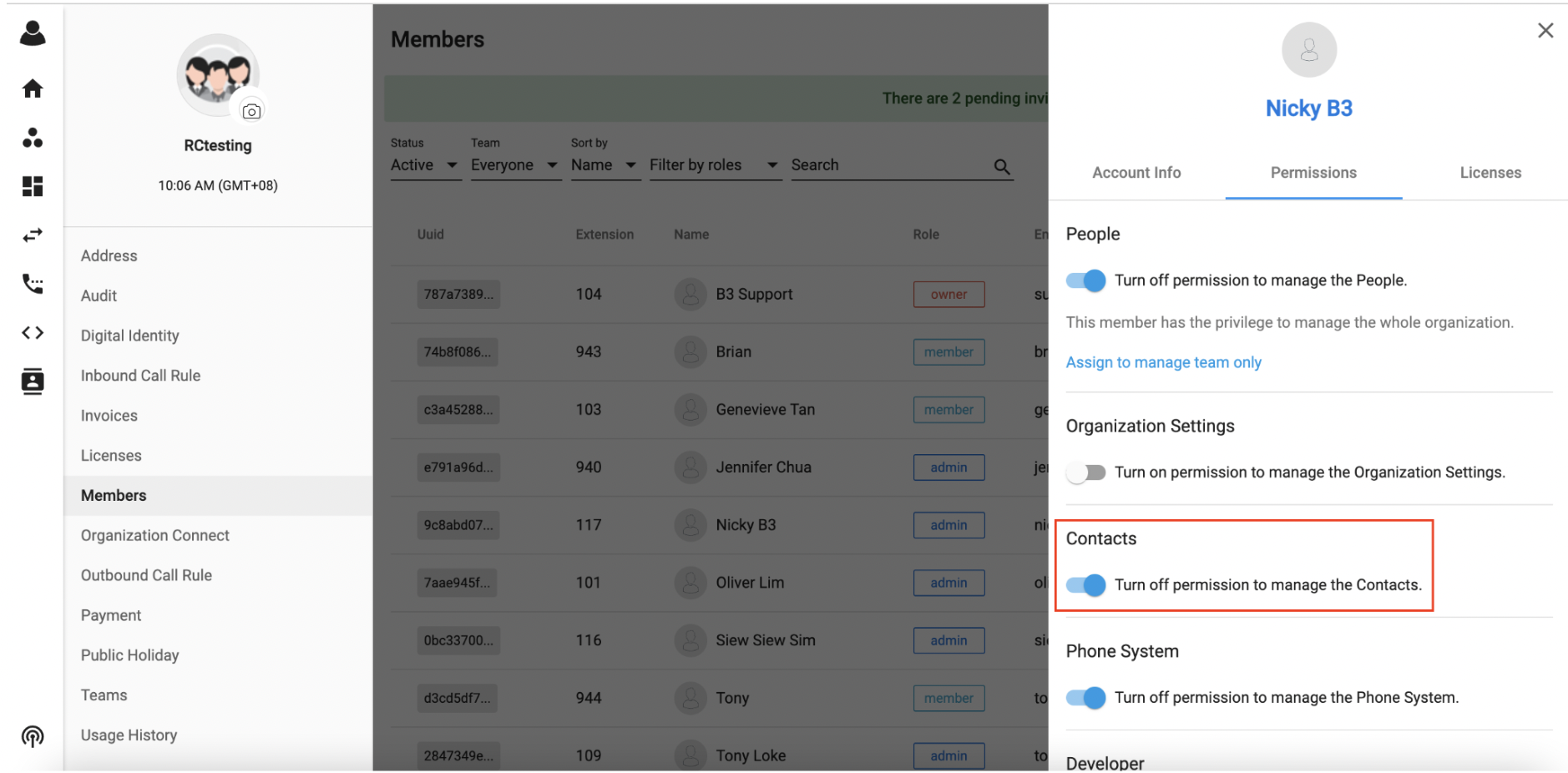
The Contact page is controlled by the Contact Permission Group.
- Owner has full access to the Contact > Company Blacklist/Whitelist
- Admin must be granted permission by Owner to access Contact > Company Blacklist/Whitelist
- Member cannot access Contact > Company Blacklist/Whitelist.
Company Blacklist/Whitelist
Owner / Admin (granted permission) can view Company Blacklist/Whitelist
Company Blacklist/Whitelist will be provided to Organisation without Licence. The Company Blacklist/Whitelist is divided into different mediums:
- Voice (Outbound call)
- SMS (Outbound SMS)
- Fax (Release soon)
There are 3 options:
- Blacklist
- Whitelist
- None
Adding Numbers
- Click the +Add button.
- Select the Country flag to set the country code.
- Input the phone number (Area code + Phone number).
- Select the desired status (None, Whitelist, or Blacklist) for Voice, SMS, and Fax.
- Click Add to save.

Import Number/ Export Number
- Users can Import a list of numbers and their status in Company Blacklist/Whitelist.
- They can create a CSV file by downloading a sample file, follow the template and then upload the number list.
- Click Export to download of the current blacklist/whitelist configuration as a CSV file.
File template

Status Values
| Status | Meaning |
|---|---|
| Allow | The number is whitelisted for the channel. Calls/SMS/Fax to or from this number are permitted. |
| Block | The number is blacklisted for the channel. Calls/SMS/Fax to or from this number are blocked. |
| None | No rule is set for the channel. Default platform behaviour applies. |
Note:
The entries in the file should be validated in e164 format.
- If some numbers have errors (do not match the format, wrong status, etc.), System will not allow to upload the whole list and return them in a popup "Failed to upload number list"
Personal Whitelist
Users need to purchase a Personal Whitelist license and assign it to their Phone System license to use Personal Whitelist.
Only extension assigned Personal Whitelist license can access their own Personal Whitelist
The Personal Whitelist is divided into different mediums:
- Voice (Outbound call)
- SMS (Outbound SMS)
- Fax
There are 2 options:
- Whitelist
- None
Adding Numbers
- Click the + Add button.
- Select the Country flag to set the country code.
- Input the phone number (Area code + Phone number).
- Select the desired status (None or Whitelist) for Voice, SMS, and Fax.
- Click Add to save.

Import Number/ Export Number
- User can Import a list of numbers and their status in their Personal Whitelist.
- User can create a CSV file by downloading a sample file, follow the template and then upload the number list.
- Click Export to download of the current whitelist configuration as a CSV file.
File template

Logic:
- Check the Personal Whitelist, if the number is in the whitelist, proceed to call
- Else check Company Whitelist, if the number is in the whitelist, proceed to call
- Else check the Company Blacklist, if the number is on the blacklist, block the call
- Else if the user has a DNC license, check DNC, if the number is in DNC, follow the DNC configuration (Block/Prompt/Allow).
A customer have a DNC number (+6512345678) but the customer willingly allow the company to call to the DNC number => The company will add the DNC (+6512345678) to the Company Whitelist so that the company can call to the customer but block the call to other DNC number.