Subscription

Written by B3Networks Academy
Updated at October 13th, 2026
-
OSS/BSS Answers
Access Control Security Hub Admin Audit B3Network Master Account Channel App Contract App Customer App Discount App Edge Server File Management Finance App Invoice App Number Management Payment Portal Settings Price List Product App Release V2 SMS Gateway Supplier App Support Center Support Hub Business Hub Sales Hub Finance Hub
- App Model - Organization Management
- App Model - Communication Apps Answers
- License Model - Organization Management
-
License Model - CPaaS Solution Answers
Phone System - Admin Guide Phone System - End-user Guide Mobile App Desktop App Web Phone Omni-Channel Auto Attendant - Admin Guide Developer Hub - Admin Guide Microsoft Teams Operator Connect - Admin Guide Microsoft Teams Direct Routing - Admin Guide Contact Center - Supervisor Guide Contact Center - Agent Guide SIP Trunk CPaaS - SIP Trunk Power SIP Trunk CPaaS Fax CPaaS Hotdesking Contact Campaign File Explorer Power Mobile App Files App Campaign App Data Compliance
- Telcoflow
- Integrations Answers
- Updated Regulations
- Ideas Portal
Table of Contents
Subscriptions Tab
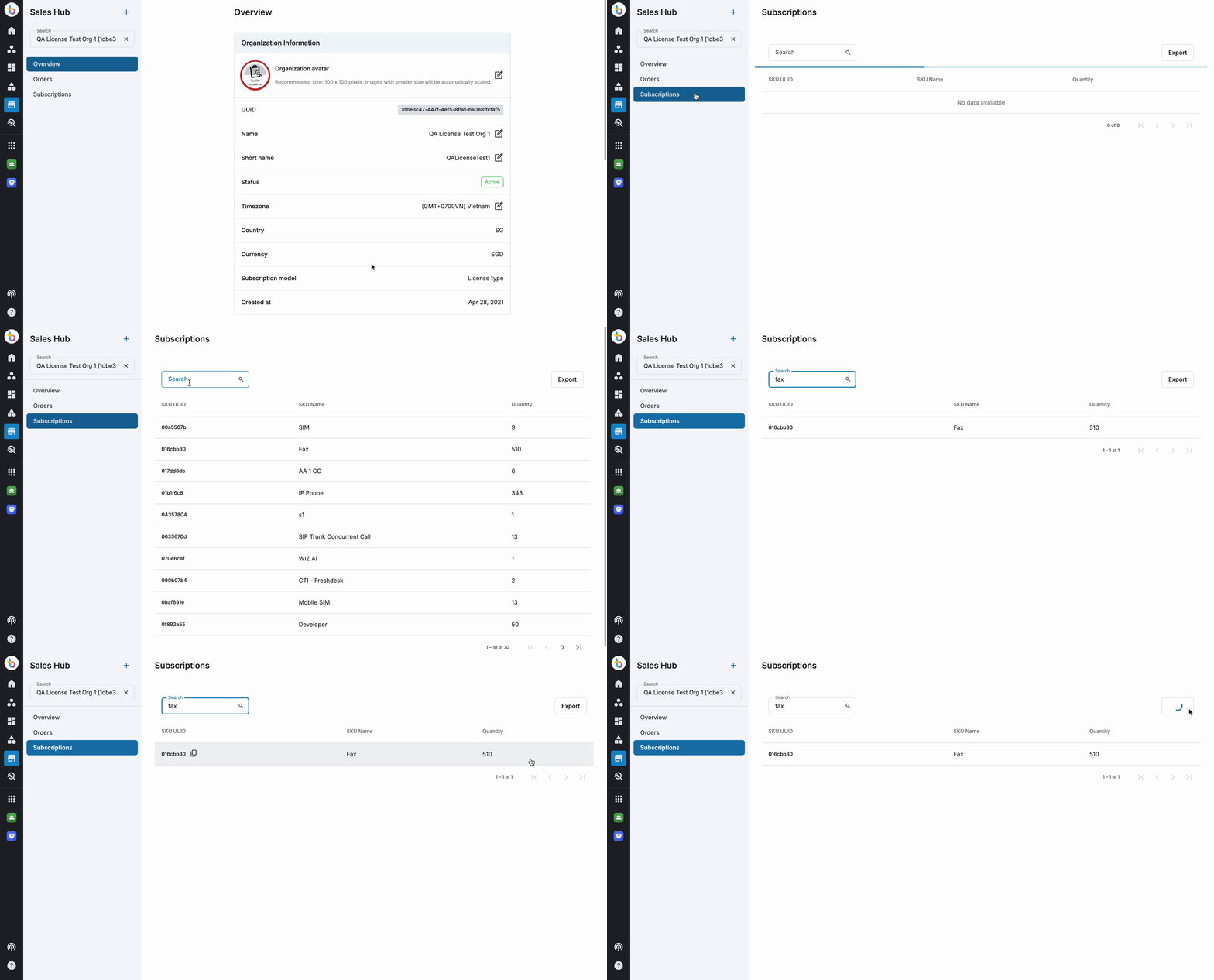
Once your order has been provisioned, you can review your subscription details under the Subscriptions tab.
- Go to Subscriptions tab
- Search for the particular SKU UUID
- Click on Subscriptions to view the Bundle Subscription you just purchased.
- You will see following detail here:
- SKU UUID
- SKU Name
- Total quantity
- Users can export the subscriptions report in a csv format by clicking the Export button
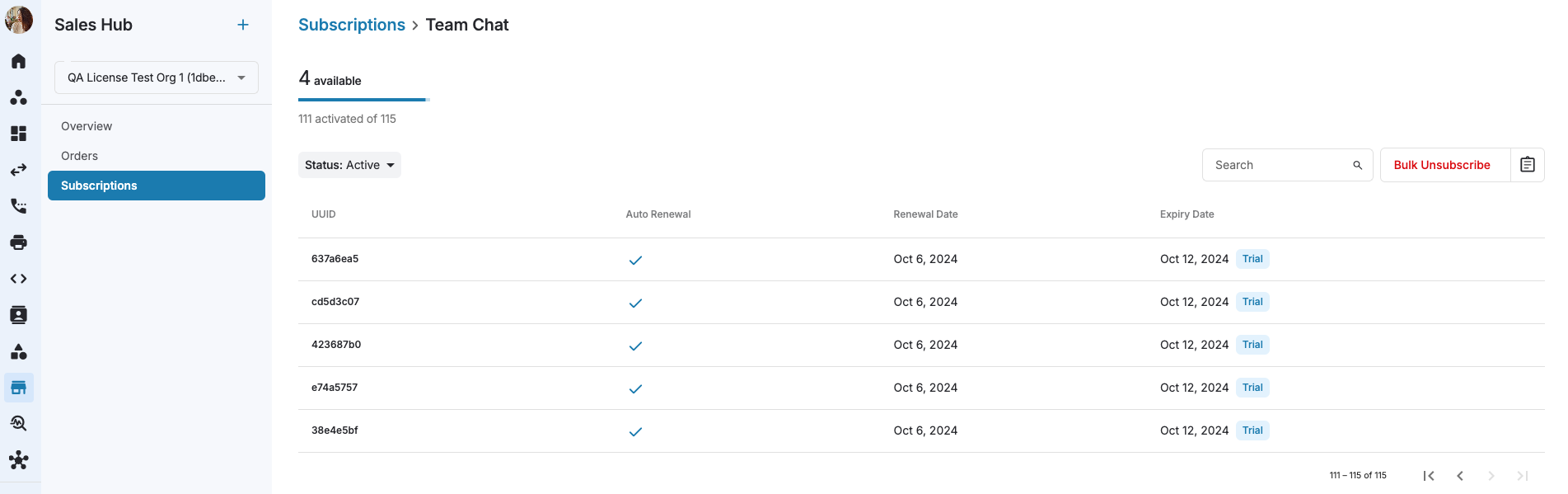
Users can click on the selected SKU to be navigated to a new page that provides all the details about that specific SKU:
- Available quantity
- Status
- Active
- Expired
- Suspended
- Terminated
- Search by Subscription UUID
- Columns will have below details:
- UUID (click to copy)
- Auto Renewal
- Renewal Date
- Expiry Date
Users can click on the SKU to view information in a separate popup window to perform more actions.

Note
- Reactivating a Suspended subscription restores service access. You are not billed for the suspension period, and the expiry date moves forward by the number of days suspended.
- Reactivating an Expired subscription triggers a charge calculated from the original expiry date, including the elapsed period when the service was inactive. Review the billing period, amount, and new expiry date before confirming. Invoice timing follows your seller's invoicing settings.
- A Terminated subscription cannot be reactivated.

- Subscription Reactivation UI clearly displays a detailed pricing breakdown, including cycle-based charges, tax calculation, total formula, and updated expiry date.

Extend a subscription
- Open the subscription details.
- Under Expiry date, click Extend.
- In Extend expiry date of subscription, select an option:
- Quick: Enter the Amount and check the displayed Unit. In the example below, the amount is 1 and the unit is Month(s). Change the amount if you need a different extension.
- Absolute: Select the new Expiry date. The date is required before you can apply the change.
- Review your selection and click Apply.


If Input invoice number before proceeding appears, select the option that matches the transaction: Invoice has been sent. or No invoice has been sent. Send it now. Complete any required invoice information and click Apply.

System displays a Trial flag to differentiate between subscriptions.
For any failed renewal or expiring subscriptions, system displays alerts and allows the service provider admins to stay informed about subscription status of an account.

How to recover or extend subscription
- Go to Sales Hub and select Subscriptions tab
- Click on Failed renewals or Expiring
- Select the subscription
- Click on Recover or Extend subscription
- Input the invoice information
- Click on Apply

Note
For failed to renew / expiring subscriptions, users can view the reason in the last column.

Terminate a subscription
To terminate a subscription, follow the steps below:
- Go to Sales Hub and search for an organization.
- Go to Subscriptions tab and navigate to the subscription you want to terminate.
- Click on the subscription and navigate to Terminate button in the subscription information.
- Enter a reason for termination and review the eligible refund amount, if any, including applicable tax.
- Add the credit note ID created for the refund amount, or proceed without it. The subscription will be terminated.

Auto Terminate
Auto Terminate (formerly Bulk Unsubscribe) reduces your total license quantity. Use it to release available (unassigned) licenses.
Note: Auto Terminate is used to reduce total license seats based on available (unassigned) licenses. If you need to revoke or deactivate a license that is currently in use, perform the Terminate action on the specific assigned license instead.
- Go to Sales Hub and select an organization.
- Open Subscriptions and select the license SKU.
- Click Auto terminate.
- Review Total licenses, Assigned licenses, and Available licenses to terminate.
- In Number of licenses to terminate, enter the quantity to release. To reduce unused capacity, enter a quantity that does not exceed the available licenses.
- Enter the reason in Remark.
- Review the quantity and click Terminate.
Keep the quantity within the available-license count to avoid affecting licenses in use. If the quantity exceeds the available licenses, the operation can affect assigned licenses. Use the specific license's Terminate action when you need to deactivate a particular assigned license.


The system displays progress while the operation runs and a notification when it finishes.
Auto Terminate for Non-license Subscriptions
For non-license subscriptions, such as hardware, services, or connectors:
- Go to Sales Hub and select an organization.
- Open Subscriptions and select the non-license subscription.
- Open the auto termination action and upload the list of subscriptions to terminate.
- Review the list and follow the dialog prompts to confirm termination.
Auto Terminate Report
Use the report to review Auto Terminate operations and download their results in CSV format.
- Open the selected SKU under Subscriptions.
- Click the clipboard report icon beside Auto terminate.
- Review the report. Its columns are Project UUID, Input quantity, Success quantity, Status, and Remark.

Subscription Status Definitions
| Status | Meaning |
|---|---|
| Active | Subscription is operational and in good standing. |
| Expired | The subscription reached its end date without renewal. Reactivation triggers billing from the original expiry date. |
| Suspended | Service access is paused. On reactivation, the suspension period is not billed and the expiry date moves forward by the number of days suspended. |
| Terminated | Permanently deactivated. Cannot be reversed. |
Key Concepts
| Term | Meaning |
|---|---|
| Subscription | An active entitlement to a specific SKU, with a defined quantity and lifecycle status. |
| SKU | Stock Keeping Unit — a product or service offering subscribed to by an organization. |
| Trial flag | A marker indicating a subscription is on trial. Only one trial per product per organization is allowed. |